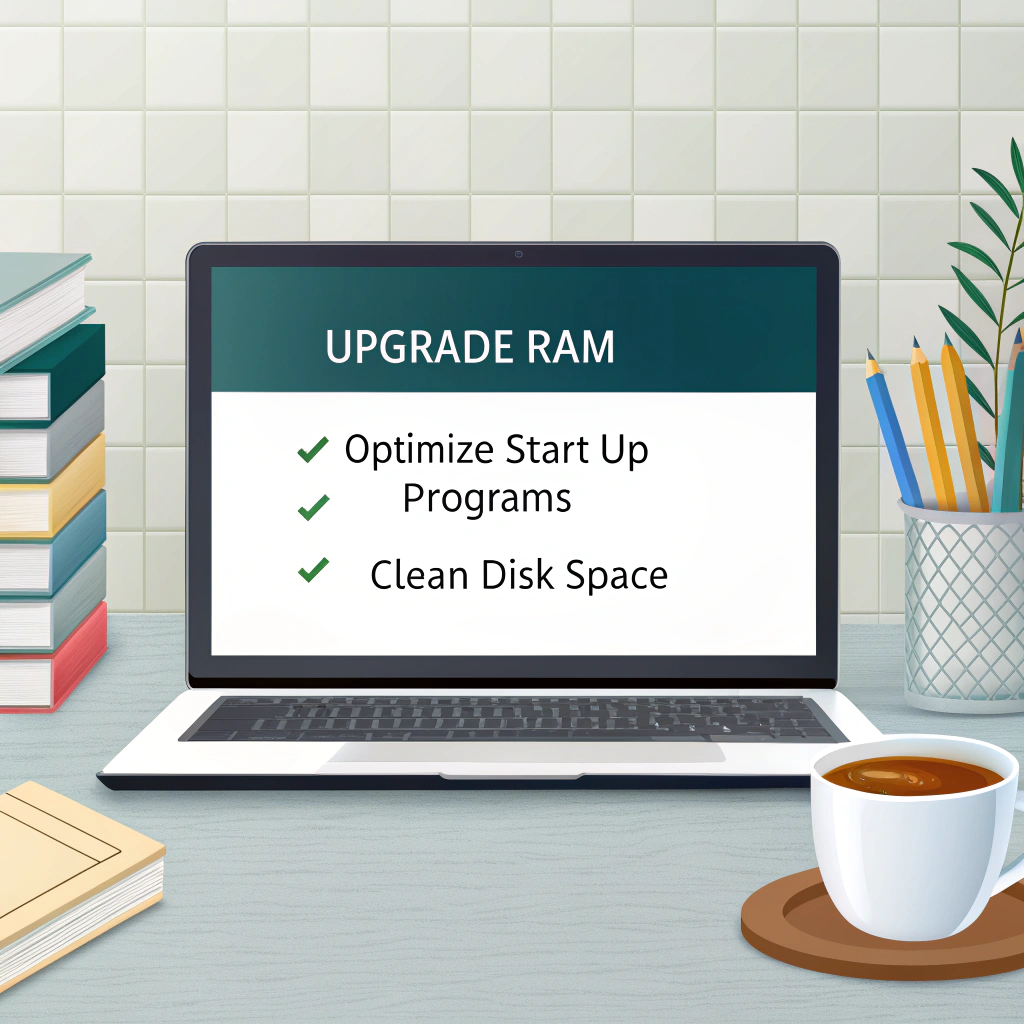

Laptop Performance Optimization Tips 2025 — Speed Up Your PC
Even the fastest laptops can slow down over time due to:
Cluttered software & bloatware
Background apps consuming resources
Fragmented or full storage
Overheating and poor cooling
Laptop performance optimization can:
Boost speed and responsiveness
Extend battery life
Improve gaming and productivity performance
Prolong hardware lifespan
This guide covers:
Software optimization
Hardware upgrades
Cooling & thermal management
Battery improvements
Storage & memory optimization
Gaming & AI performance tips
Maintenance & preventive care
1. Analyze Your Laptop Performance
Before optimization, know your laptop’s performance:
| Tool | Purpose | Notes |
| Task Manager (Windows) | Monitor CPU, RAM, Disk usage | Press Ctrl+Shift+Esc |
| Resource Monitor (Windows) | Detailed system usage | See per-process impact |
| Activity Monitor (Mac) | CPU, RAM, disk, network usage | MacOS built-in |
| HWMonitor | Temperature monitoring | CPU, GPU, battery temps |
| CrystalDiskInfo | Storage health | SSD/HDD health status |
Pro Tip: Identify heavy processes before removing or disabling them.
2. Software Optimization Tips
2.1 Remove Bloatware & Unnecessary Programs
Uninstall apps you don’t use
Disable startup programs (Task Manager → Startup)
Use lightweight alternatives for heavy apps
2.2 Keep Software Updated
Update OS, drivers, BIOS
Latest GPU drivers improve gaming and AI workloads
Security patches prevent malware slowing your laptop
2.3 Manage Background Processes
Disable non-essential background apps
Use “Focus Assist” (Windows) or “Activity Monitor” (Mac)
Limit apps running at startup
2.4 Optimize Visual Effects
Windows: Settings → Performance → Adjust for best performance
macOS: Reduce transparency & animations
3. Hardware Optimization & Upgrades
| Upgrade | Benefits | Notes |
| RAM | Improved multitasking, faster software | Upgrade to 16–32GB DDR5 if supported |
| SSD | Faster boot and app load times | Replace HDD or smaller SSD with NVMe SSD |
| Thermal Paste | Better CPU cooling | Reapply every 2–3 years |
| External Cooling Pad | Lowers temps | Especially for gaming laptops |
Pro Tip: Upgrading RAM & SSD gives the most noticeable speed improvement on older laptops.
4. Storage Optimization
4.1 SSD vs HDD Management
SSD: Keep 20–30% free for optimal speed
HDD: Defragment regularly (Windows)
4.2 Disk Cleanup
Remove temporary files, cache, downloads
Windows: Disk Cleanup or Storage Sense
Mac: Optimize Storage → Reduce clutter
4.3 Cloud Storage & External Drives
Move large files to cloud (Google Drive, OneDrive)
Use external drives for media or backups
5. Cooling & Thermal Management
Keep vents dust-free → use compressed air
Avoid placing laptops on soft surfaces
Monitor CPU/GPU temps (HWMonitor, MSI Afterburner)
Use laptop cooling pads for long gaming sessions
Pro Tip: High temps can throttle performance, reducing FPS or processing speed.
6. Battery Life Optimization
| Tip | Description |
| Adjust Power Plan | Windows: Balanced/High Performance/Power Saver |
| Lower Brightness | Reduces power draw |
| Disable Unused Devices | Bluetooth, Wi-Fi (if not in use) |
| Battery Calibration | Charge to 100%, discharge to 5% occasionally |
| Sleep Mode Optimization | Prevent background tasks from draining battery |
7. Gaming & High-Performance Workload Tips
7.1 For Gamers:
Update GPU drivers
Use game mode in Windows
Adjust in-game settings (FPS vs Graphics)
7.2 For AI & Tech Workloads:
Ensure proper GPU utilization (CUDA/OpenCL)
Close unnecessary apps for better memory allocation
Use NVMe SSD for large datasets
7.3 Overclocking:
Optional for advanced users
Use Intel XTU or AMD Ryzen Master
Monitor temps carefully
8. Maintenance & Preventive Care
Clean vents & fans monthly
Reapply thermal paste every 2–3 years
Keep software updated
Run antivirus scans regularly
Backup important files regularly
Pro Tip: Preventive maintenance avoids performance drops and hardware failures.
9. Advanced Optimization Tools
| Tool | Purpose | Notes |
| CCleaner | Disk cleanup & registry | Windows only |
| MSI Afterburner | GPU monitoring & overclock | Gaming laptops |
| CrystalDiskInfo | SSD/HDD health | Detect early failures |
| ThrottleStop | CPU performance tuning | Advanced users |
| iStat Menus | Mac performance monitoring | CPU/GPU/RAM temps |
10. Step-by-Step Optimization Workflow
Backup data
Update OS & drivers
Clean bloatware & startup apps
Optimize storage & defrag (HDD)
Apply cooling solutions
Upgrade RAM/SSD if needed
Test performance (games, benchmarks, AI tasks)
Monitor temps & battery usage
11. Conclusion
Optimizing your laptop in 2025 ensures it runs faster, cooler, and longer. Key takeaways:
Software cleanup and updates improve speed
Hardware upgrades (RAM, SSD, cooling) give major boosts
Thermal management prevents throttling
Gaming & AI workloads benefit from monitoring and optimization
Regular maintenance prolongs lifespan
By following these steps, your laptop can feel brand-new again, maximizing both performance and productivity.